Madi 도움말 센터.
막힌 부분을 검색하거나, 아래 세 가지 가이드부터 시작해 보세요.
/
추천 검색어
여기서 시작하세요
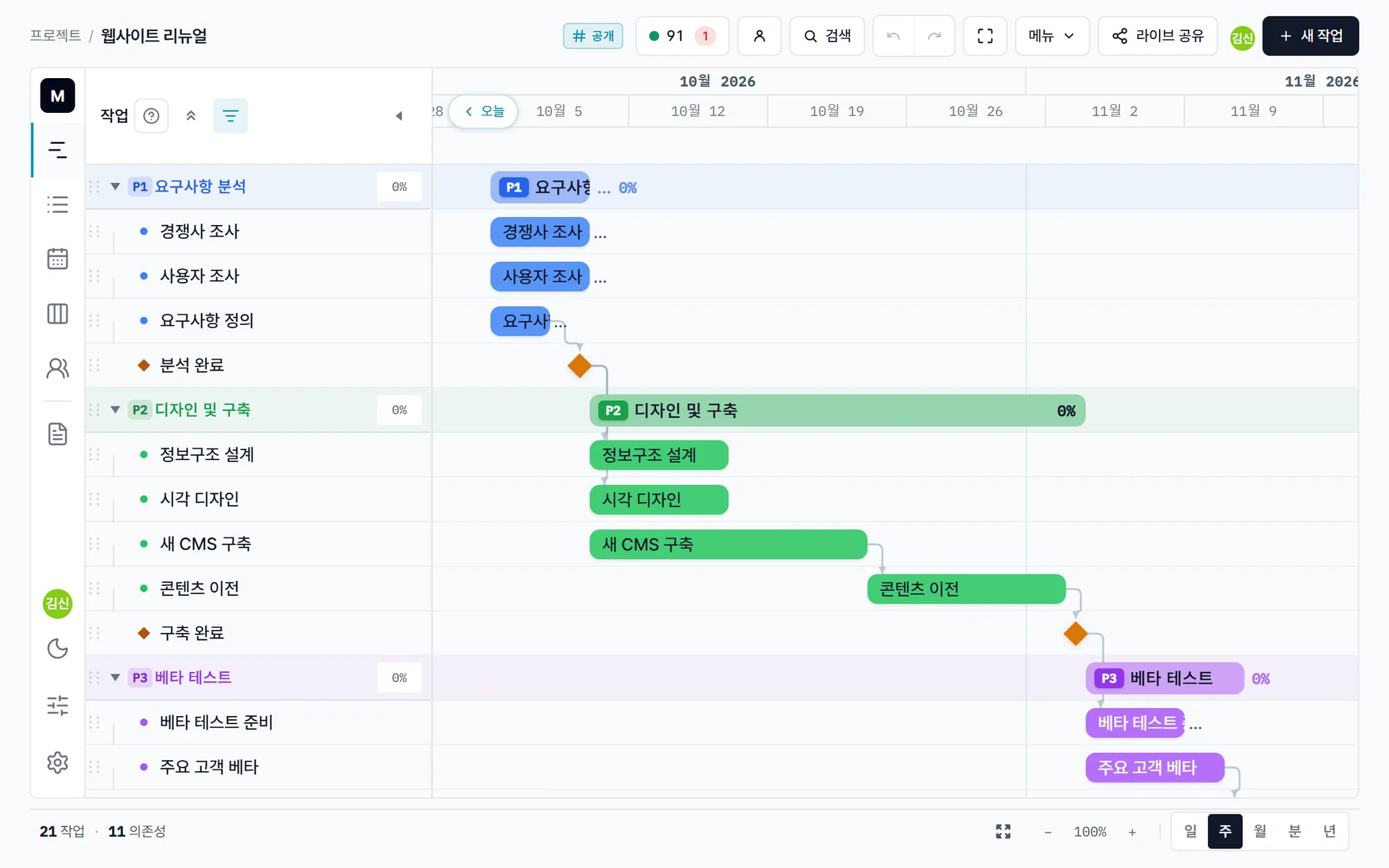
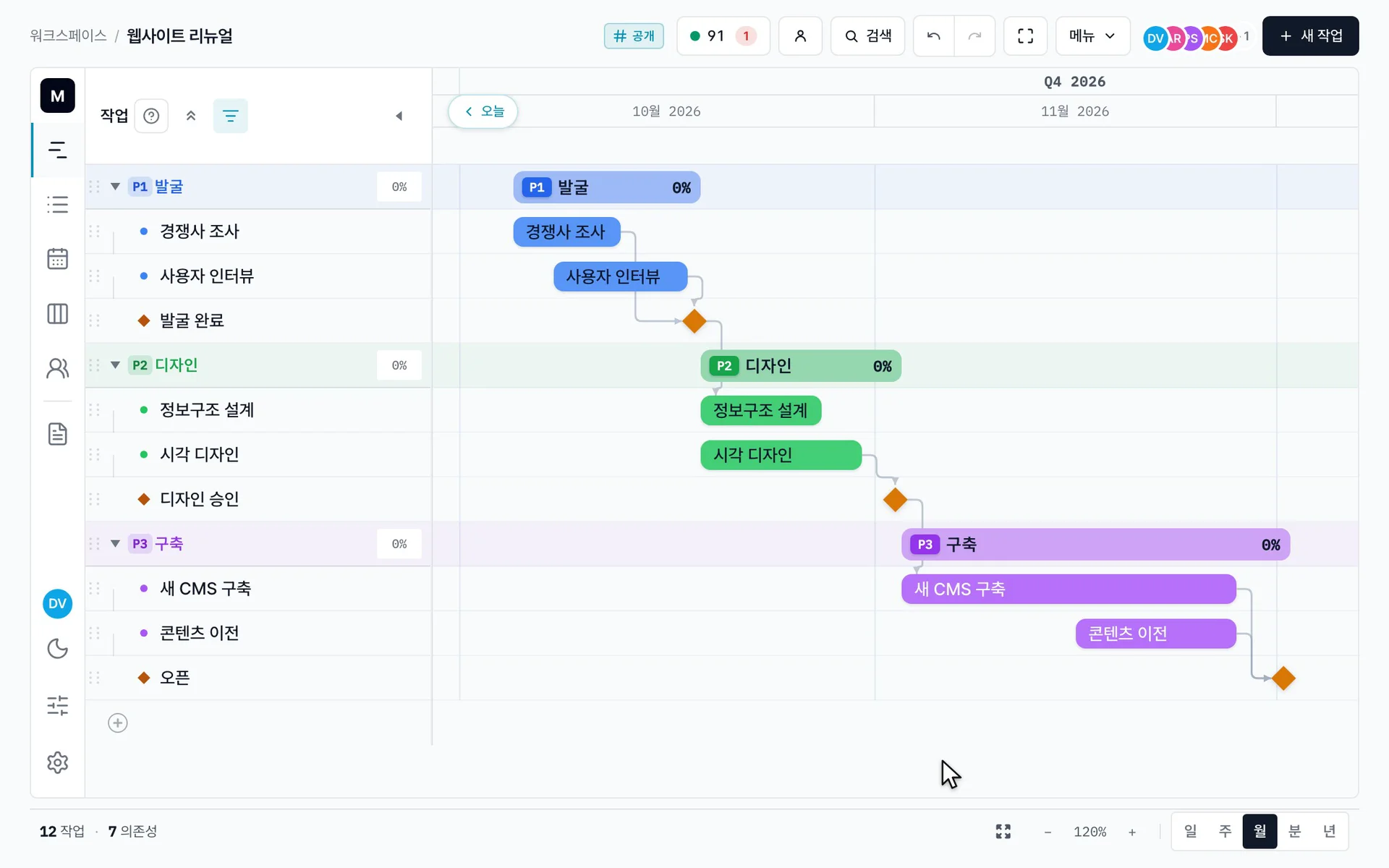
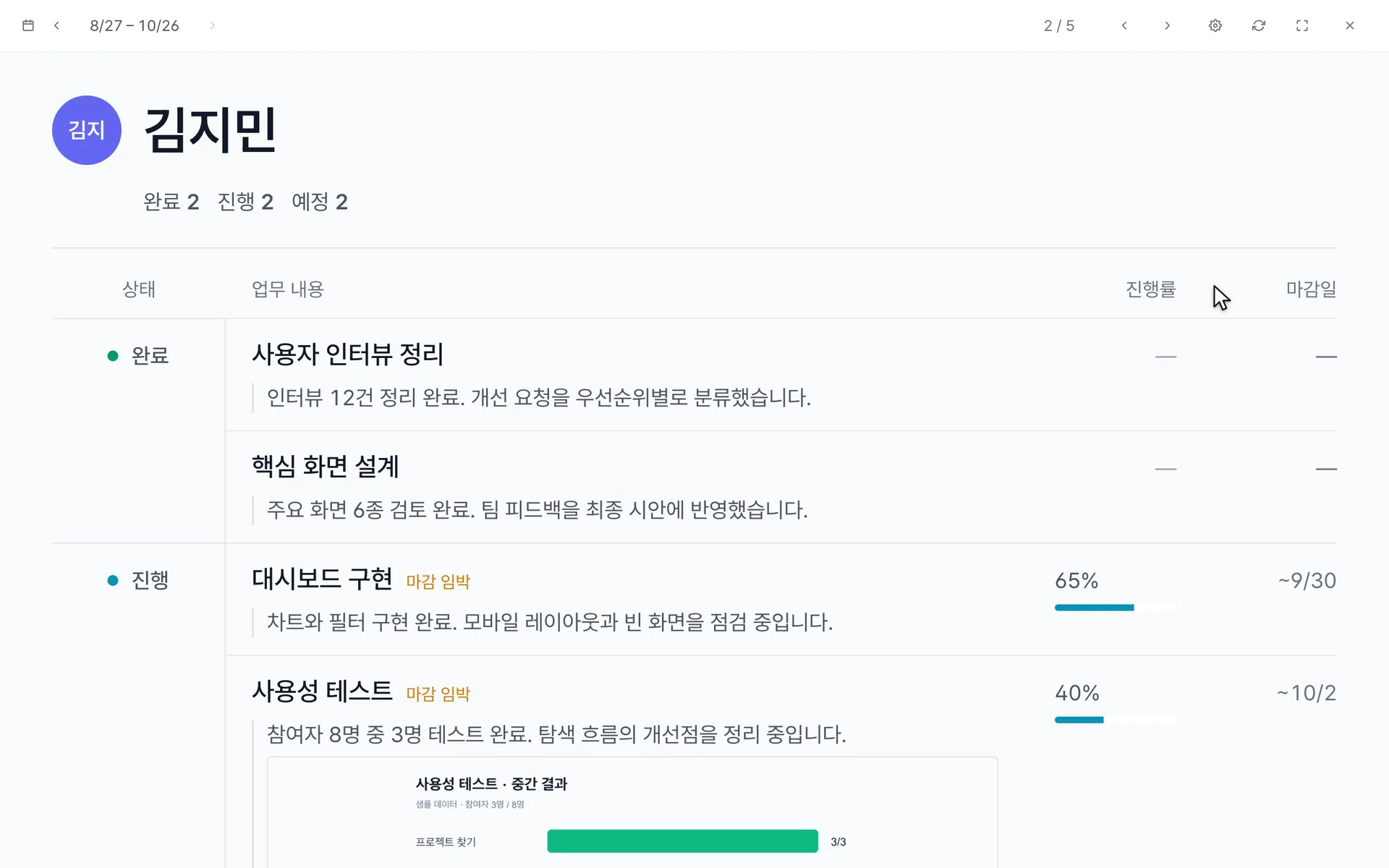
첫 계획 만들기, 차트 다루기, 주간 회의 진행 — 이 세 편이면 Madi의 대부분을 알 수 있습니다.
주제별로 둘러보기
시작하기
일정 짜기
- 의존성 & 자동 일정영상FS / SS / FF / SF 연결, 지연(lag), 그리고 건드리지 않은 작업이 움직인 이유.
- 태스크 에디터작업의 모든 필드, 담당자 vs 이해관계자, 자동 저장 vs 설명의 저장.
- 주요 일정과 가져오기작업이 아닌 프로젝트 표식, 여러 날 일정, 붙여넣기 / CSV 가져오기.
- 베이스라인 & 변화 추적영상계획을 고정한 뒤 실제 일정이 움직일 때 그에 대한 지연을 확인하기.
- 프로젝트 템플릿재사용 가능한 단계 / 상태 / 범례, 그리고 템플릿 수정이 기존 프로젝트를 건드리지 않는 이유.
- 가져오기와 내보내기프로젝트 전체의 ZIP 백업 — 함께 옮겨가는 것과, 다른 워크스페이스로 옮길 때 빠지는 것.
팀과 함께
- 워크스페이스 · 게스트 · 플랜워크스페이스 · 초대받음 · 게스트, 리드 / 에디터 / 뷰어 역할, 누가 배정받을 수 있는지, 편집자 좌석 vs 무료 뷰어.
- 공유와 임베드공개 vs 비공개 프로젝트, 공유 링크, 임베드, 그리고 viewer가 볼 수 있는 것.
- 댓글 · 메모 · 첨부댓글 + @-멘션, 진행 메모 기록, 파일 — 그리고 멘션이 Slack엔 가끔만 가는 이유.
- Walkthrough(사람별 발표)영상간트 위 실시간 스탠드업 — 한 번에 한 사람 스포트라이트, 팀을 차례로.
- 부재 일정 — 휴가와 출장자리를 비우는 때를 한 번 기록하면 Workload·간트·캘린더에 뜨고 배정 시 경고합니다. 선택적 Slack 공지.
- Slack 알림멘션·배정 시 DM, 그리고 MadiPlan 링크를 Slack에 공유할 때 미리보기.
- 활동 로그누가 무엇을 언제 — 필터 가능한 읽기 전용 프로젝트 기록(90일).
- 프로젝트 간 참조다른 프로젝트의 단계를 읽기 전용으로 가져오기. 단방향, 팀 플랜 이상.
진행 보기·보고
계정·지원
키보드 단축키 — 차트 어디서든 ? 키를 누르면 전체 치트시트가 열립니다. 단축키 전체 보기 →